
Create a Custom WhatsApp Template
Follow this detailed step-by-step guide to compose, configure, and submit your message template.
Go to Message Templates & click Create Custom Template
Navigate to Message Templates from your sidebar navigation. Click the green + Create Custom Template button located in the top-right corner.
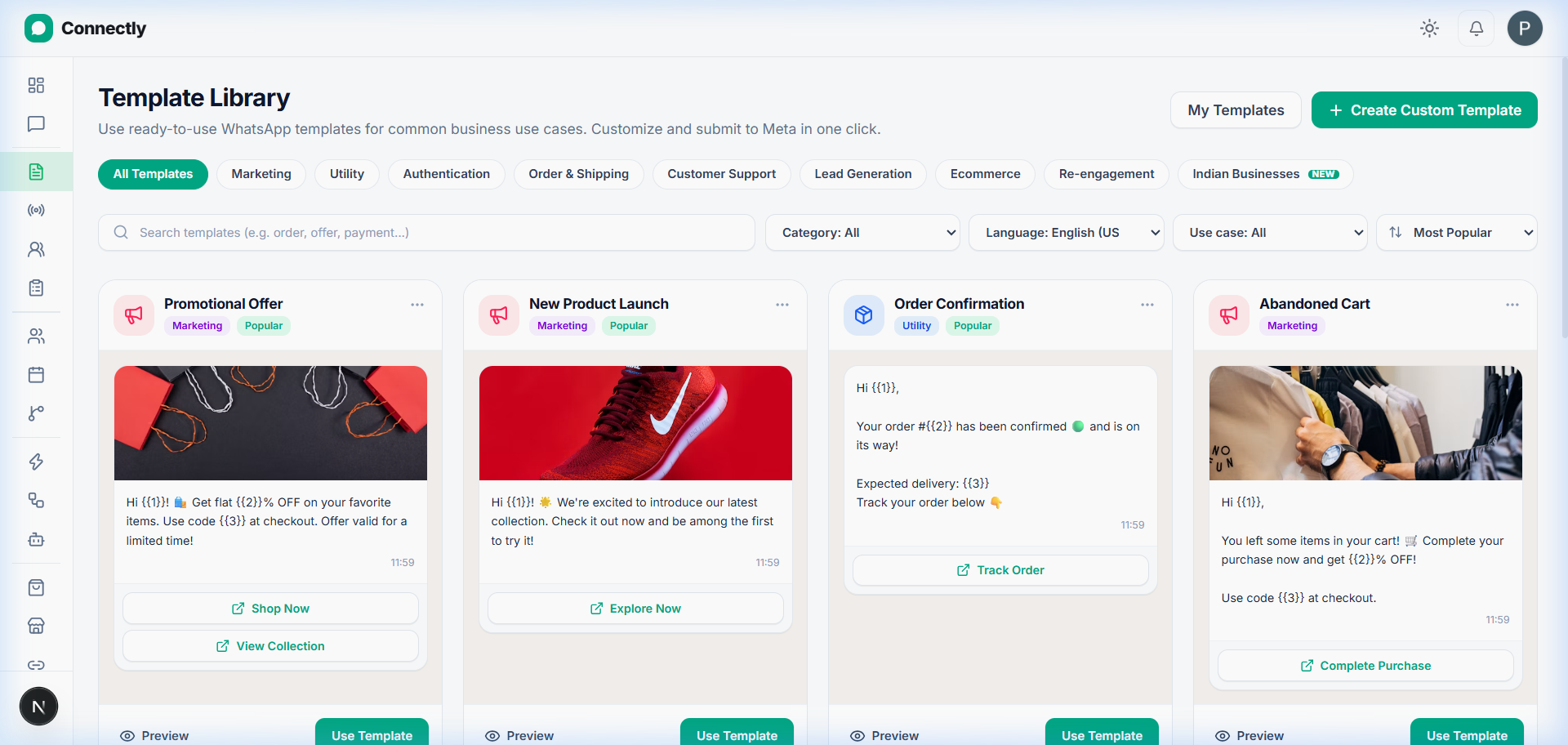
UI Preview: Click Create Custom Template to open the wizard.
Enter Template Name, Category, and Language
Enter a descriptive name like summer_sale_offer_2026. Select Marketing or Utility, and choose your primary language.
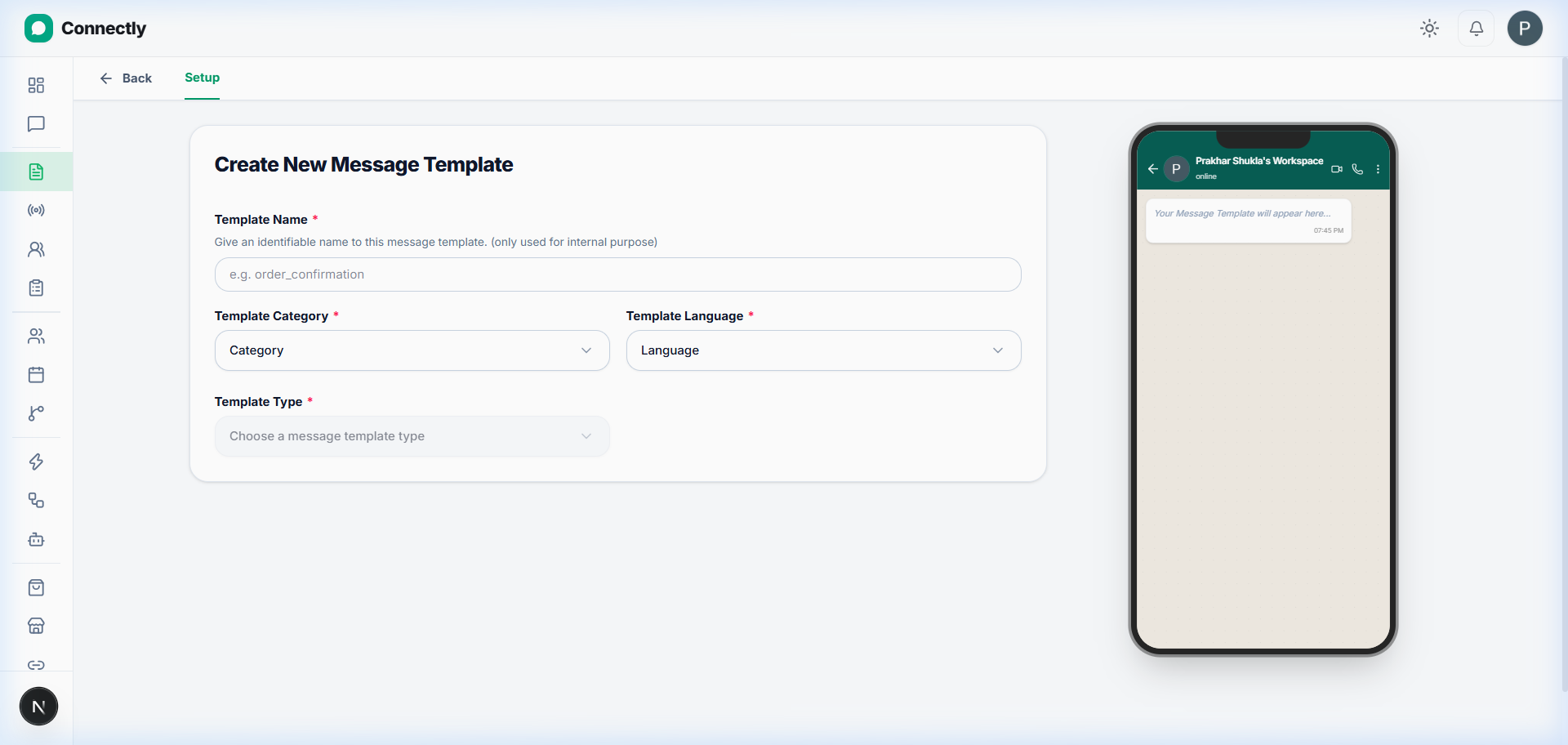
UI Preview: Configure template identifier, category, and language.
Pro tip: Template names can only contain lowercase letters, numbers, and underscores (no spaces or special characters).
Select Header Format (Optional)
Headers appear at the top of your message in bold or media format. Choose between:
- Text: Bold text title up to 60 characters.
- Image: Upload a JPG/PNG promotional banner.
- Video: Upload an MP4 video clip.
- Document: Attach a PDF brochure or receipt template.
- None: Start directly with body text.
Write Body Text & Insert Dynamic Variables
Type your message text up to 1024 characters. Click + Add Variable to insert dynamic placeholders like {{1}} (First Name), {{2}} (Order Number), or {{3}} (Discount Code).
Review Live Preview & Submit to Meta
Verify the live WhatsApp chat mockup on the right screen. Once satisfied, click Submit to Meta for Approval.
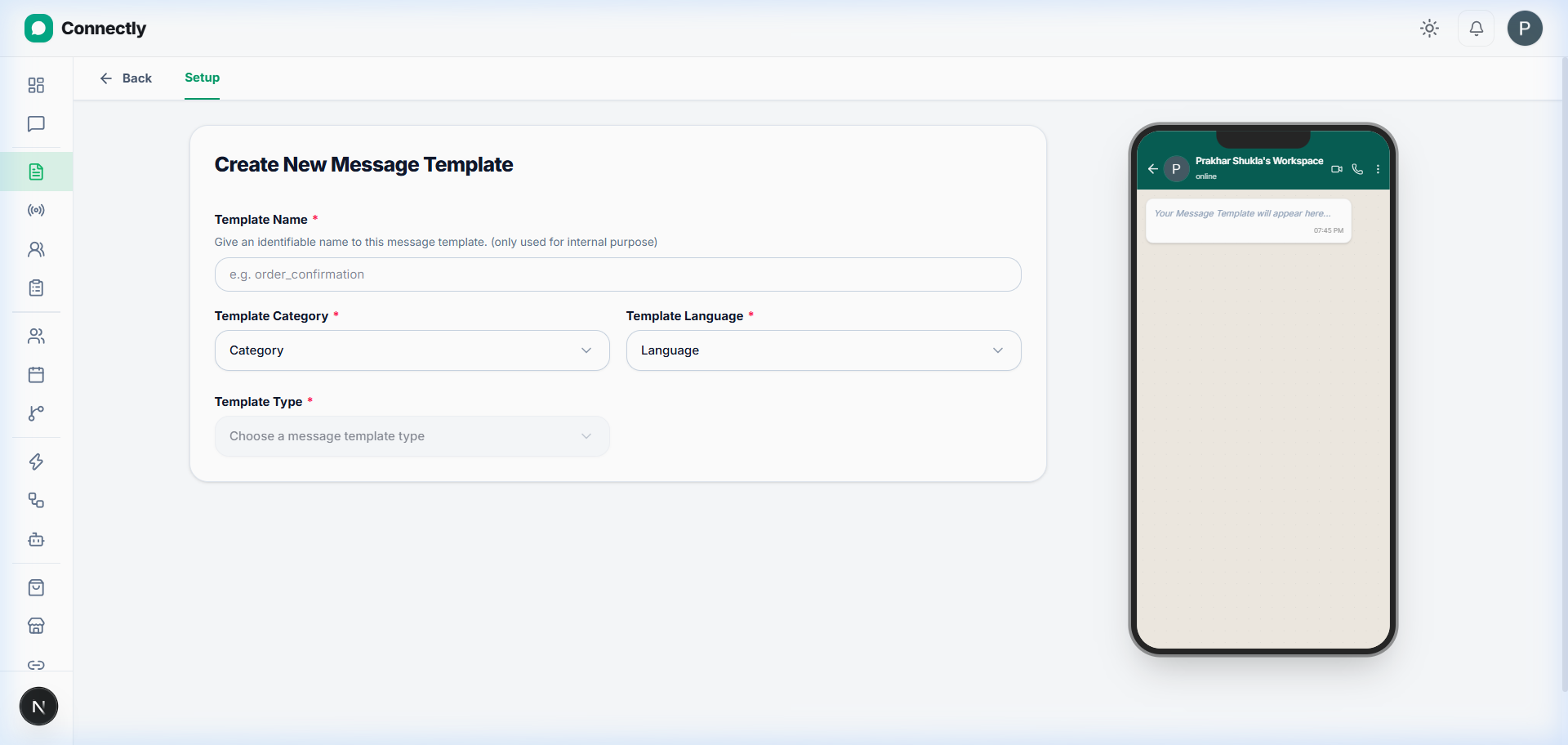
UI Preview: Final review and Meta submission.