
How WhatsApp Templates Work
Understand the complete lifecycle of creating, composing, previewing, and submitting a WhatsApp template to Meta.
Open Template Library
From your ReplyEarly dashboard, navigate to Marketing > Message Templates. Here you can view all synced templates or click + Create Custom Template.
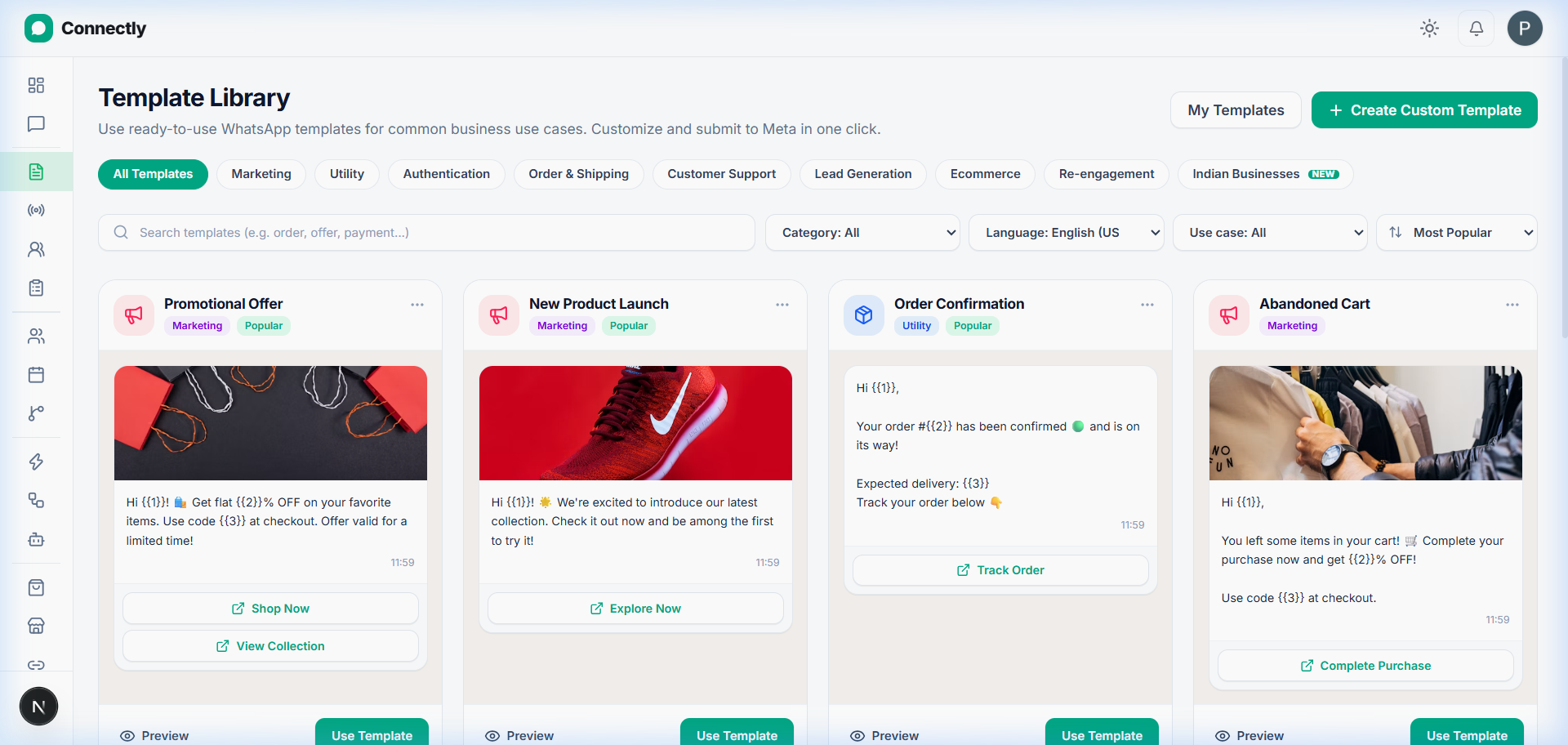
UI Preview: Browse your template library or click Create Custom Template.
Pro tip: Filter by category or language to find pre-built templates created for common business use cases.
Select template category & language
Choose your message category (Marketing, Utility, or Authentication). Name your template in lowercase with underscores (e.g., order_update_v1) and pick the primary language.
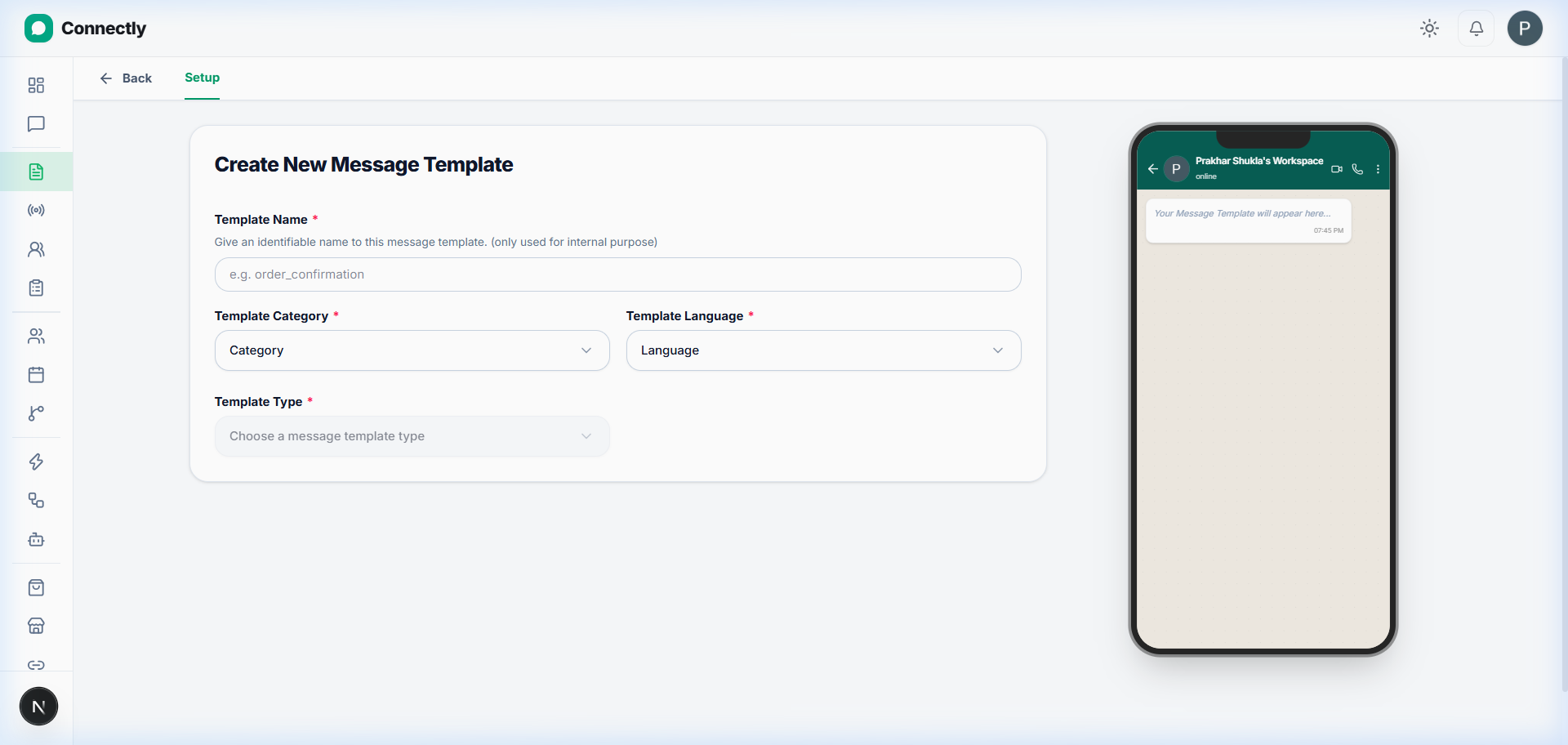
UI Preview: Configure template name, category, and target language.
Compose message text, header & buttons
Add an optional text or media header (Image, Video, or Document). Type your main body message. Add up to 3 Quick Reply buttons or Call-to-Action buttons (Website link or Phone call).
Add dynamic variables (e.g. {{1}}, {{2}})
Use variable tags like {{1}} for customer name, {{2}} for order number, or {{3}} for tracking URL. Provide sample values for Meta reviewer verification.
Preview and Submit to Meta
Check the live WhatsApp device preview on the right. Verify formatting and click Submit to Meta for Approval.
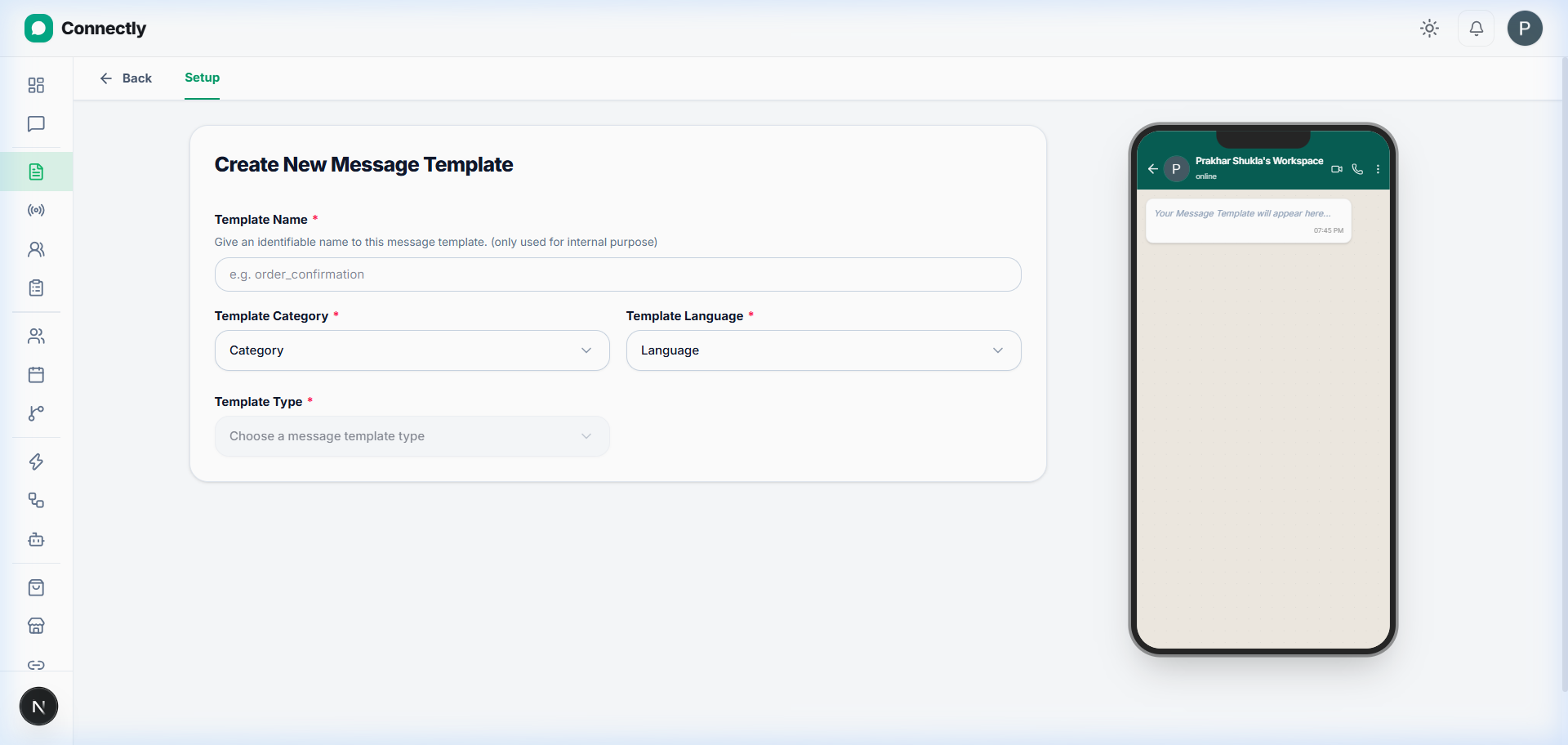
UI Preview: Review your template on live preview and submit for Meta approval.