
Using Approved WhatsApp Templates
Learn how to send approved templates across broadcast campaigns, automated workflows, and manual Inbox replies.
Only templates with APPROVED status can be selected in broadcast campaigns and automations.
1
Use in Broadcast Campaigns
When creating a bulk broadcast campaign under Broadcasts > Create Broadcast, select your approved template in Step 2. ReplyEarly will display variable inputs to map customer contact fields automatically.
app.replyearly.com
Broadcast Picker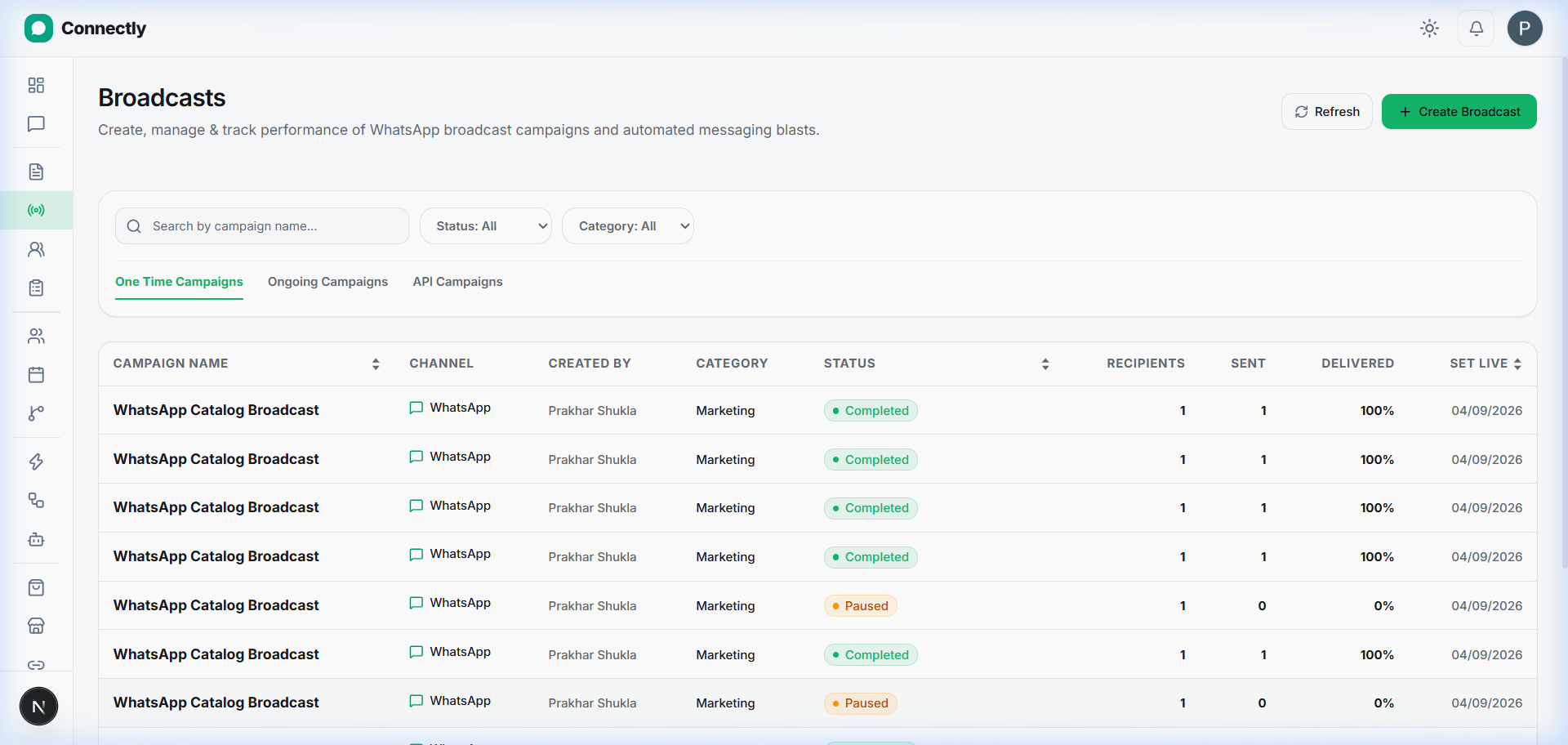
UI Preview: Pick an approved template and map variables for your bulk broadcast campaign.
2
Use in Automations & Shopify Triggers
In the Automation builder (e.g., Abandoned Cart Recovery or Order Confirmation flow), add a Send Template Message action node and choose your template.
3
Send Template in Customer Inbox
When replying to a customer outside the 24-hour service window in Inbox, click the Template Picker icon in the message box to send an approved template.